 World Clock
 widgets for your Home Screen
Keep home time beside local time, check a city’s weather or leave yourself a reminder without opening the app.
Add a widget to your Home Screen
- Touch and hold an empty space on the Home Screen until the icons jiggle.
- Tap Edit › Add Widget or +, then search for World Clock.
- Swipe through the previews, choose a widget and size, then tap Add Widget and Done.
- Touch and hold the installed widget and choose Edit Widget to see its available options.
Choose one of the seven widgets
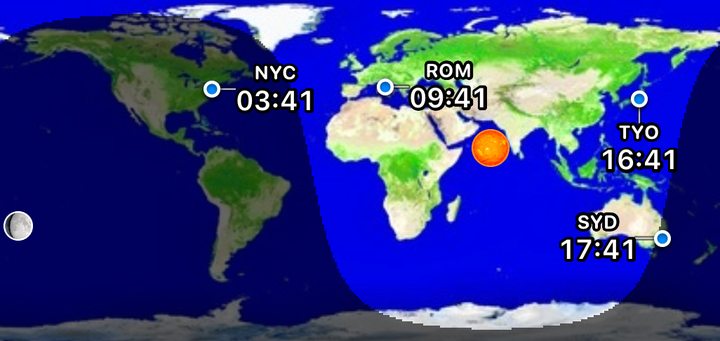
- Night and Day · Medium. Follow daylight on a world map. Mark favorite cities with local time, weather or a dot.
- Time & Weather · Small or medium. Choose a city to see its local time and weather. The medium size puts weather details beside the clock.
- Travel Clock · Small or medium. See home time wherever you are. A second clock appears when your location has a different UTC offset.
- Notes · Small or medium. Keep a message, list or reminder on the Home Screen. From iOS 17, edit the text, size and color in the widget settings.
- Super Compact · Small. Read the time, temperature, humidity, sunrise and sunset in one small square.
- Clock · Small. Read the device time, date, week number and day of the year.
- Zulu Time · Small or medium. Compare UTC, used in aviation, with local device time.
See home time while traveling
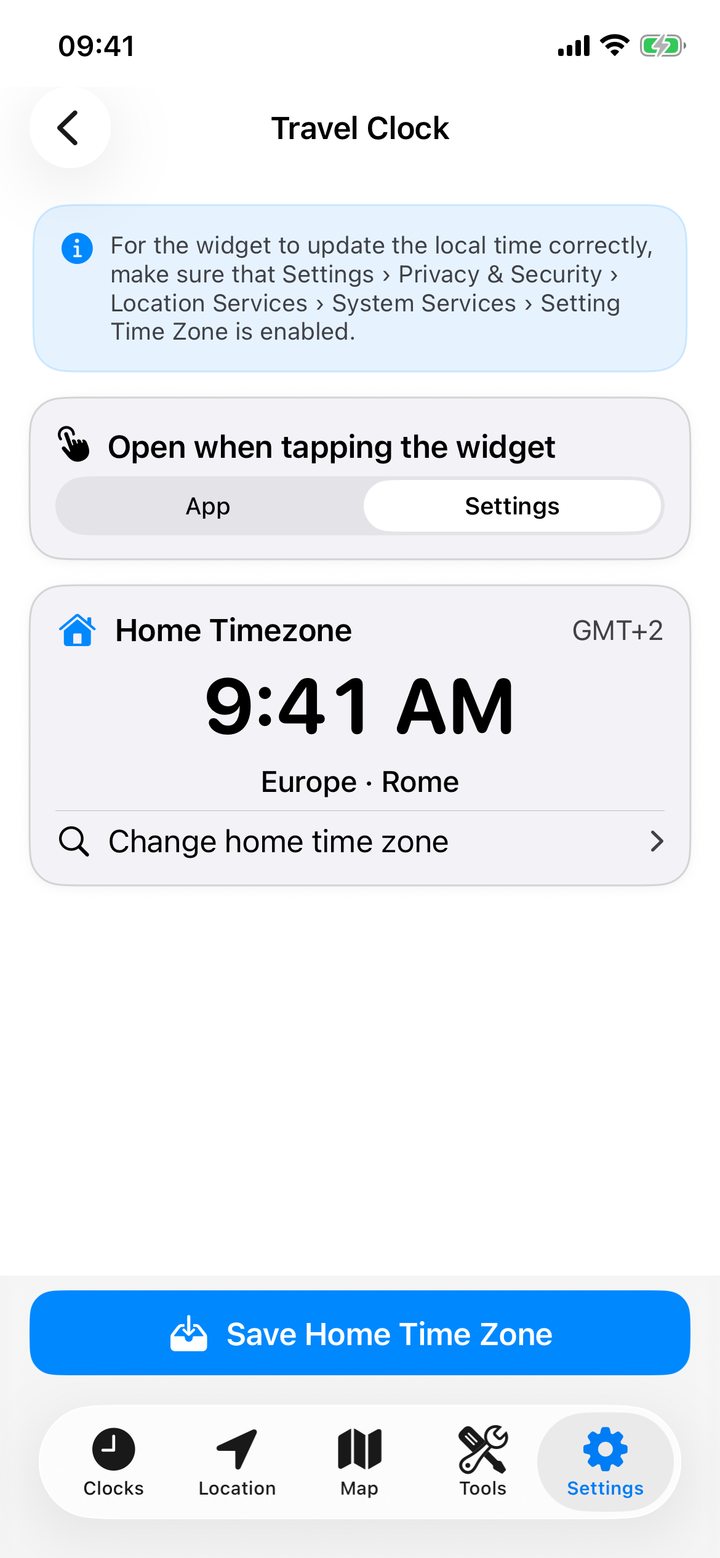
- In World Clock open Settings › Widgets › Travel Clock.
- Choose your home time zone from a favorite, search for your home city or use the device zone while at home. Tap Save Home Time Zone.
- Add the Travel Clock widget to the Home Screen.
When the device and home city have the same UTC offset, a single Home clock is enough. When the offsets differ, two clocks appear. For example, at 9:41 AM in Rome on August 23, a home clock set to New York reads 3:41 AM. Two different city names can still share the same time.
Write yourself a reminder
Touch and hold the Notes widget and choose Edit Widget. Enter a reminder such as “Pack the adapter”, choose a text size and background color, then tap outside the panel.
Change the daylight map
The Night and Day widget can mark the points directly under the Sun and Moon. To hide them, open Edit Widget and turn off Show Sun and Moon.
Set a widget’s time format
On widgets that offer the option, choose Automatic to follow the system, or choose 12 or 24 hours for that widget. The in-app setting for clocks is under Formats and units.
Change the tap action or refresh widgets
In the app’s Widgets settings, choose what opens when you tap Travel Clock. If a widget is out of date, open World Clock once or tap Update all widgets. iOS decides when the requested update appears.