 World Clock
Your first five minutes with World Clock
Start by saving one city. You can then compare its time with yours and put its clock on your Home Screen.
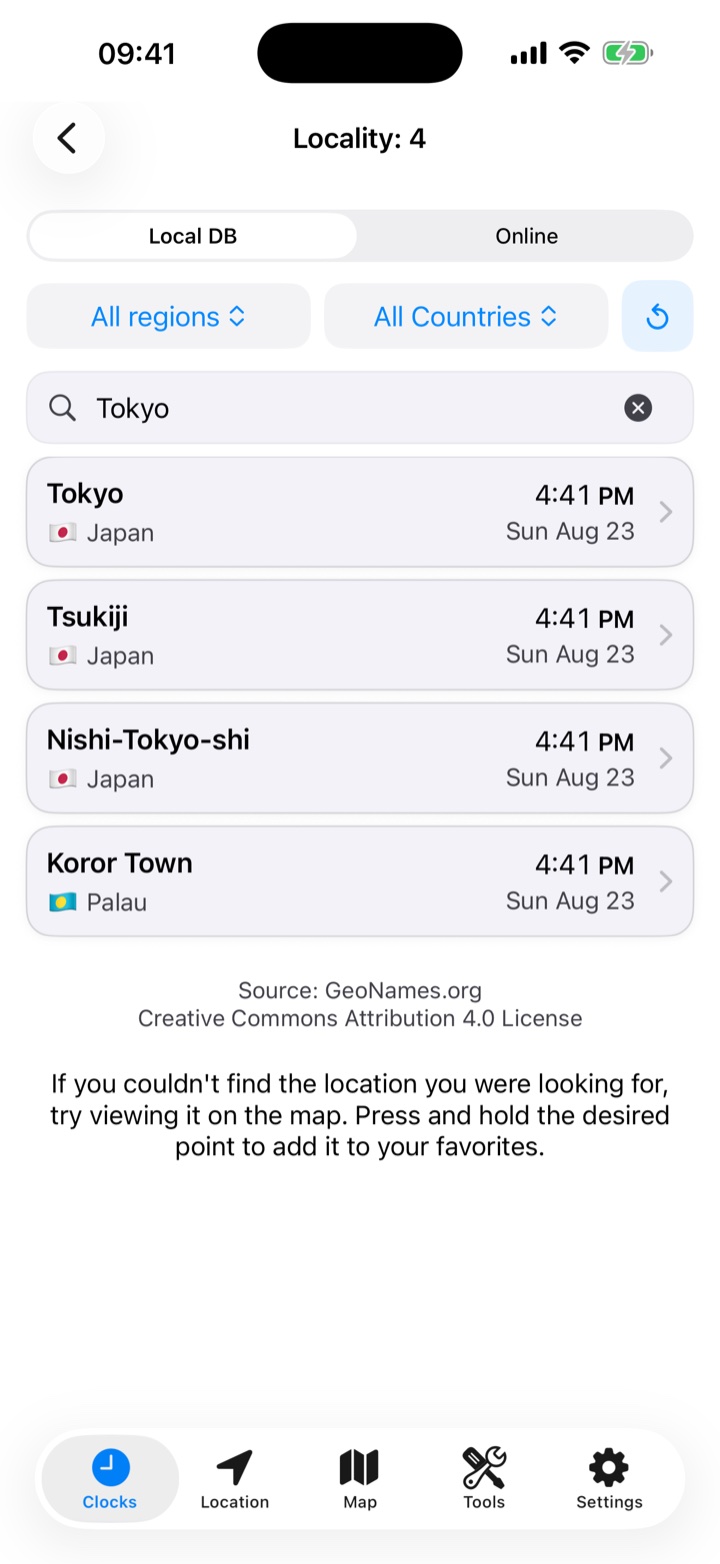
Find the time in Tokyo
- Open Clocks and tap + next to Your favorites.
- Type Tokyo and tap the result in Japan. Its page shows the local time and date, even if it is already tomorrow there.
- Tap the heart to save Tokyo. Return to Clocks to see it beside your other cities.
The city directory works offline. For a smaller place, try Search Worldwide.
Compare two clocks
Drag the slider below the daylight map until your local clock shows 6 PM. Read Tokyo’s clock for that same instant. Tap the circular arrow to return to now.
Set the clock format
In Settings › Formats and units, choose 12 or 24 hours. The choice applies in the app even when iOS uses a different format. You can set distance units and the coordinate format here too.
Find your own position
Open Location and allow location access. Read your coordinates below the map. Scroll down for the address, weather, nearby places and distance from your favorites.
Put a city on the Home Screen
Touch and hold an empty area of the Home Screen. Tap Edit › Add Widget or the + button, search for World Clock and add Time & Weather. Touch and hold the installed widget and choose Edit Widget to select a city. See all seven widgets.
Find and organize the tools
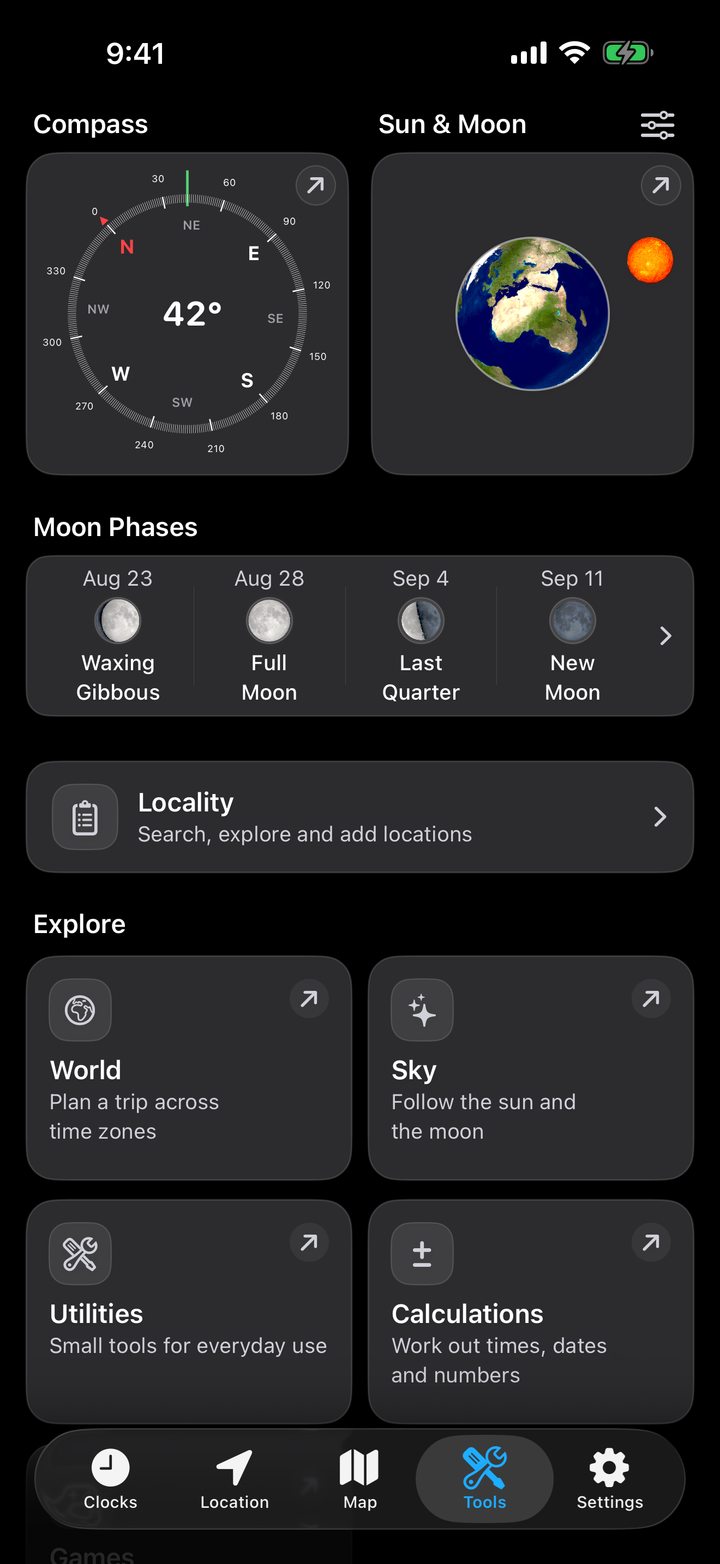
Open Tools. The overview includes a compass, Sun and Moon previews, a place search and six categories under Explore.
- World has countries, currencies, exchange rates, time zones and flight itineraries.
- Sky has satellite images, Sun and Moon positions, lunar phases, daylight maps and solar eclipses.
- Network has cellular information, a speed test, a Wi-Fi scanner and network tests.
- Utilities has the compass, map link converter, steps and flashlight.
- Calculations has number, time, date and perceived-temperature calculators.
- Games opens the game library, including the four World Clock quizzes.
Tap the sliders at the top right of Tools to choose Quick Access items, move sections or hide them. Within a category, touch and hold a tile and drag it to a new position. Use Restore default layout to start over.
Category summaries include sunrise and moonset in Sky, progress through the year, month, week and day in Calculations, and a daily tip in Utilities.