 World Clock
Clocks and favorite cities
Read the time and date at home and abroad. Shift every clock together to see what an evening call would mean for someone else.
Where to find itClocks
Read the daylight map
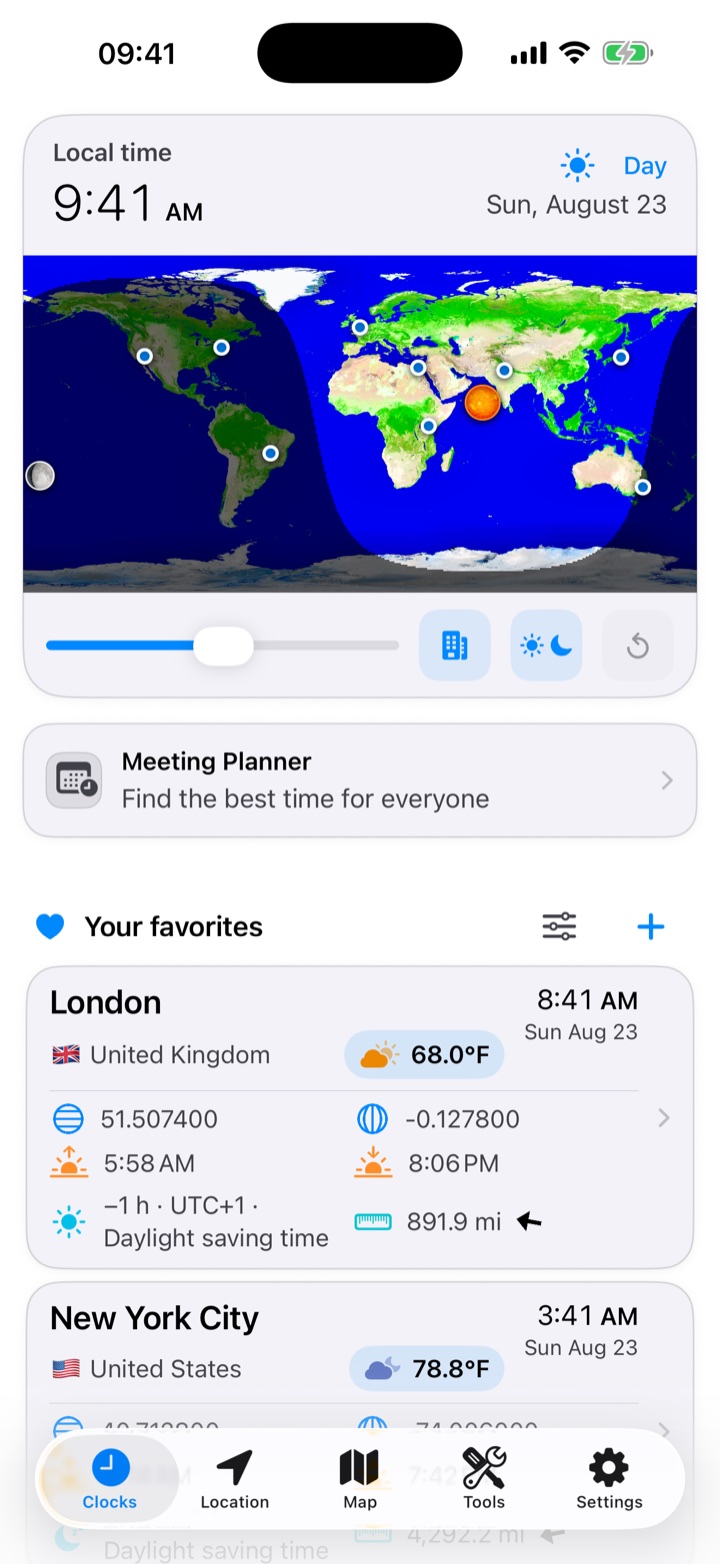
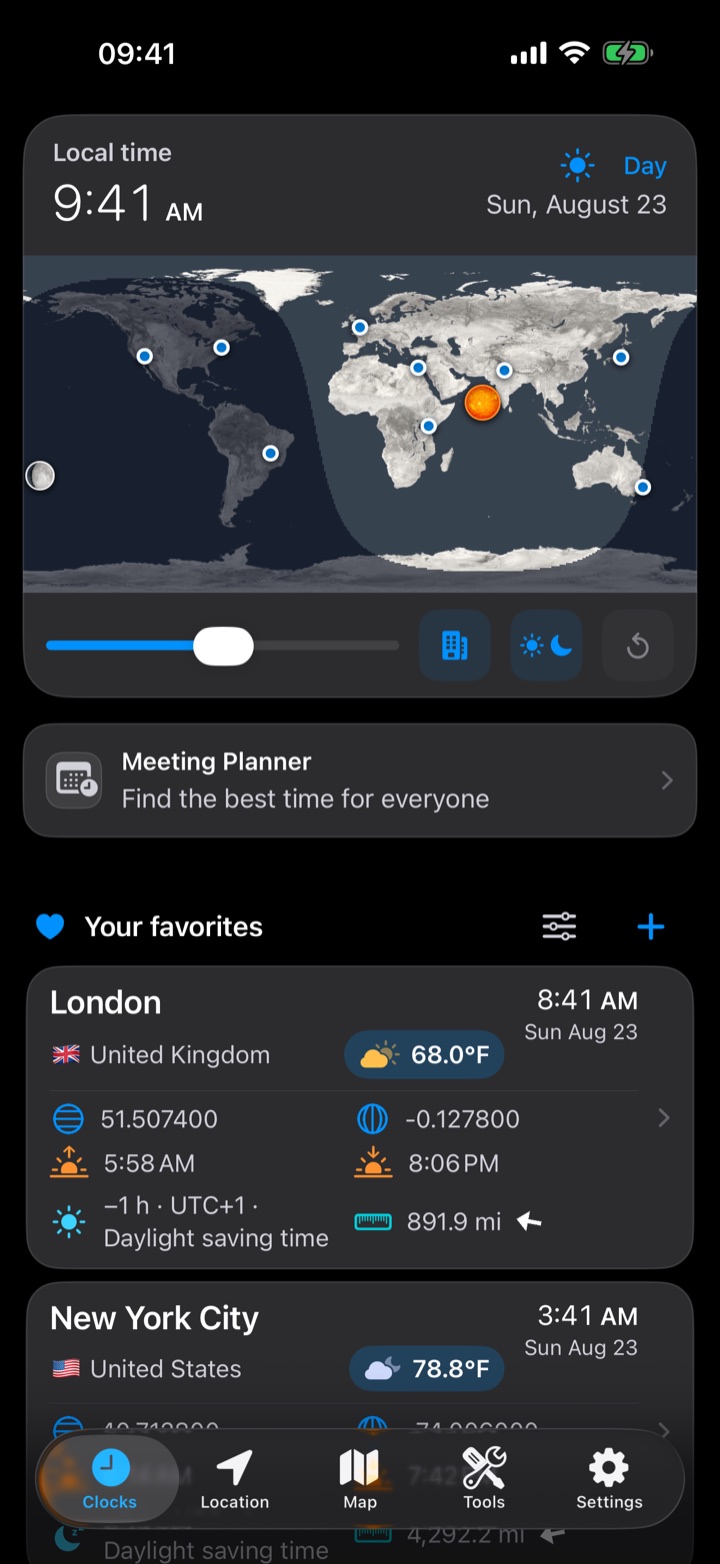
The top card shows the time and date where you are. The shaded part of the world map is in darkness. The dots mark your saved cities, so you can tell at a glance which ones are in daylight.
See what time it will be elsewhere
Move the slider under the map until your local clock shows the time you have in mind. The day-night boundary and every favorite clock move together. Tap the circular arrow to return to the present.
Read a favorite city card
Look below the planner for Your favorites. Check both the clock and the date when a city is far ahead of you. Tap its card for weather, coordinates, sunrise and sunset, Moon events and distance from you.
Add, rename or remove a city
- Tap + next to Your favorites, search for a city and open it.
- Tap the heart to save it. You can also save a point on the map.
- To give it a different name, swipe left on the city or touch and hold it, then choose Rename. Restore original name reverses the change.
- To remove the city from your list, use the same gesture, choose Delete and confirm.
Change the layout
Tap the sliders beside Your favorites to reorder cities, switch between compact and detailed cards, or move the overview, planner and favorites sections. In Settings › Favorites Details, choose whether cards show the country, weather, coordinates, Sun or Moon times, offset, distance and direction.
Update the weather
Pull down on the list and release to refresh all cities. Tap a city for its weekly and hourly forecast.
Show time standards
Open Settings › Time Standards to display Zulu time (UTC), the Unix timestamp (seconds since January 1, 1970) or the Julian date used in astronomy. You can move this block within the favorites list.
Check the device clock
If Time Verification detects that the device clock differs from a time server, an alert appears above the clocks. World Clock uses the corrected time. See how to correct the device setting.