 World Clock
Check your internet connection
Identify the active SIM, measure your connection speed or find out why a website will not open.
Where to find itTools › Network
Check your SIM and mobile connection
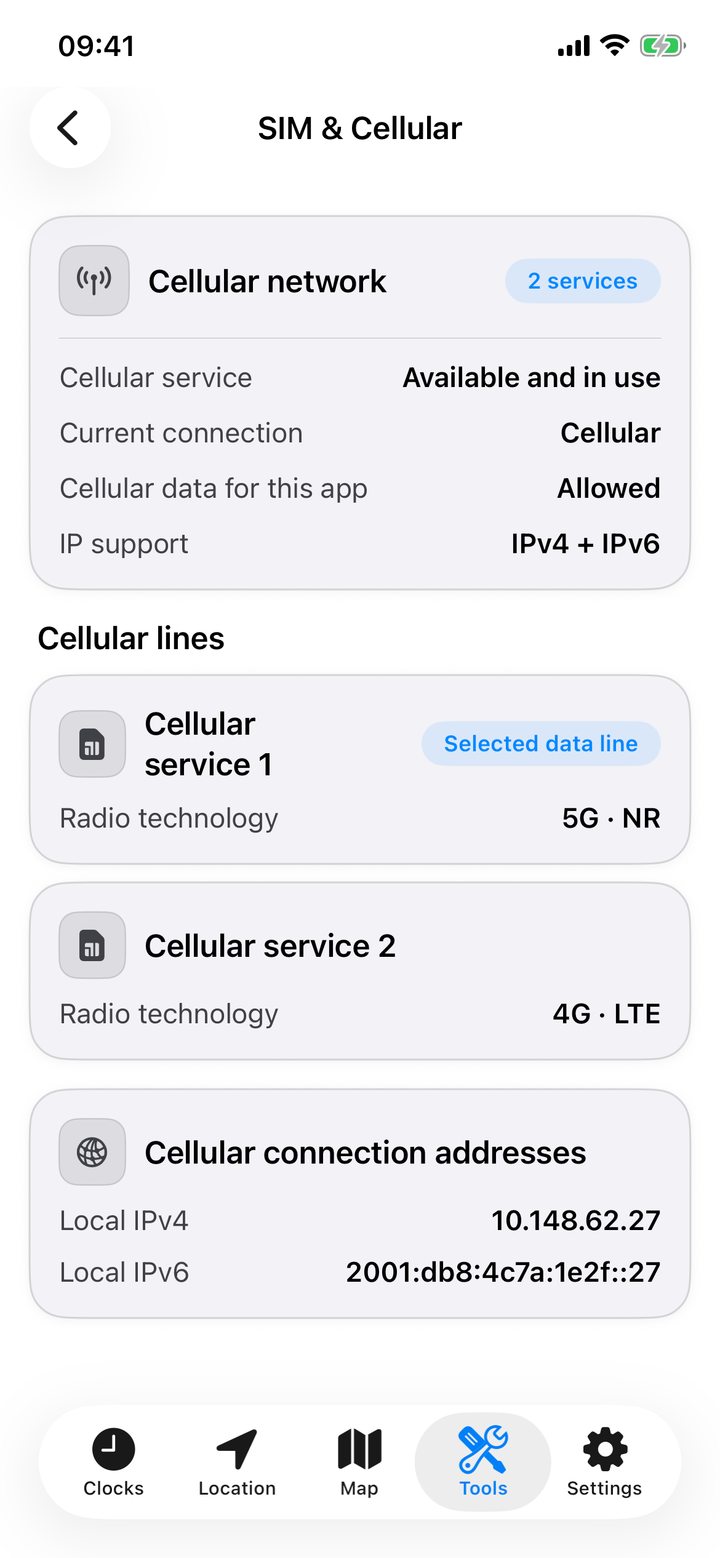
Open SIM & Cellular to see whether the device is using Wi-Fi, cellular data or a wired connection. Where iOS supplies the details, you can see physical SIM and eSIM lines, their radio technology (such as 4G or 5G), the selected data line, local IPv4 and IPv6 addresses, and Low Data Mode. Some carriers do not supply a line name.
Find your public IP address
Open Internet and speed to see the public IPv4 or IPv6 address, provider, network organization, ASN and domain. Approximate coordinates, continent and time zone refer to the network exit point. A VPN, proxy or iCloud Private Relay can place it far from your device.
Measure connection speed
Tap Speed Test to open OpenSpeedTest inside the app and measure download and upload speeds. Reload the test to run it again. Compare a result near the router with one in the room where the connection slows down.
Check whether a website responds
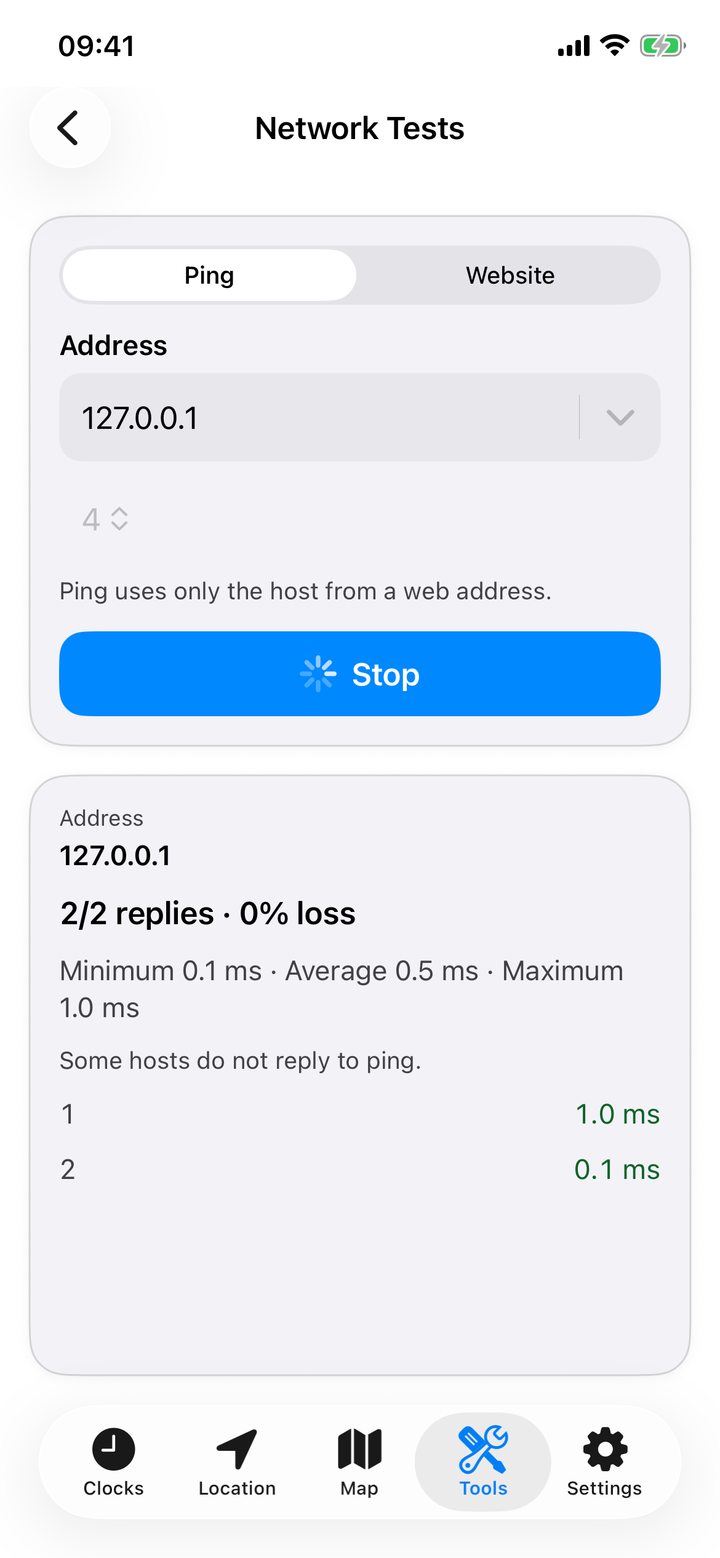
- Open Network Tests. Type an address or tap Choose an address, then select Start.
- Use Ping to check replies, packet loss and minimum, average and maximum response times in milliseconds. When you enter a URL, Ping uses the host name.
- Use Website to request the page itself. Read the HTTP status (200 for a successful response or 404 for a missing page), response time, HTTPS status, redirects and final address.
Some hosts ignore ping requests even when their web pages load. Use the Website test to check that case. Testing 127.0.0.1 checks the device itself. Choose an external host to test your internet connection. History keeps recent addresses for each test.