 World Clock
Find devices on your Wi-Fi
Scan your home or office network to identify devices, see their services and keep a record of what you find.
Where to find itTools › Network › Wi-Fi Scanner
Allow access to your network
Join the Wi-Fi network you want to inspect. On the first scan, allow World Clock to access the local network. To see and save the Wi-Fi name, also allow location access and enable Precise Location, then refresh the scanner. Scan only a private network you own or have permission to inspect.
Identify your network
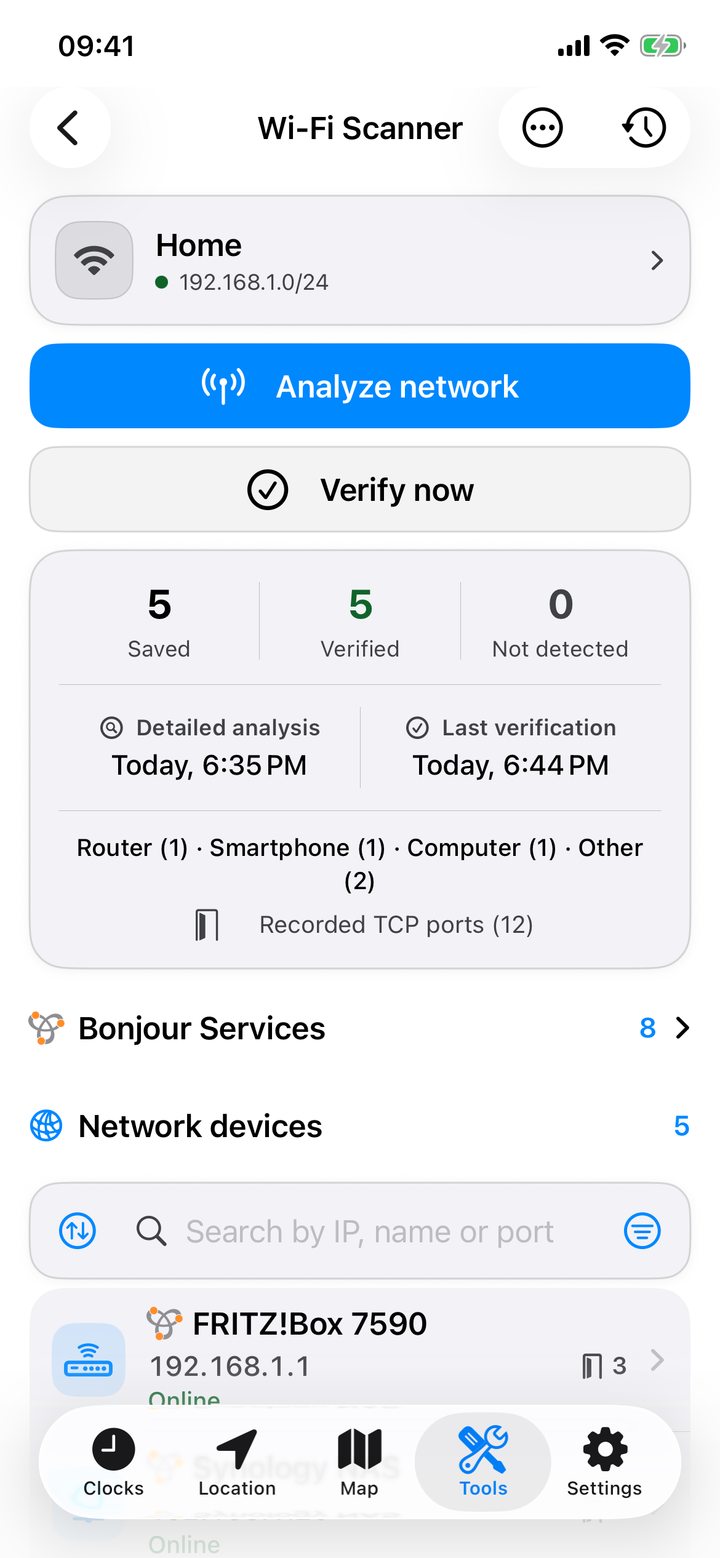
The top section shows the network name when available, the device IP, subnet mask, router or gateway, broadcast address, IPv6 addresses and size of the scan range.
Find connected devices
- Tap Analyze network or the scan button. The scanner first checks known devices, looks for additional ones, then identifies names and services. You can stop a scan.
- Look for your own device and the gateway. An unfamiliar device is marked as a possible new device. Check its name and last-seen time before identifying it.
- Search by IP address, name or port. Sort the list or filter by device type. Use the additional discovery pass for devices that rarely respond.
Inspect a device or service
Tap a device to read its IP, estimated type, announced names and first and last sightings. Give it a personal name and icon. Open a discovered HTTP or HTTPS port to reach its web interface, or tap an address or port to copy it.
Ping checks reachability and latency. Bonjour lists the services devices advertise. For compatible cameras, search for ONVIF and RTSP streams and enter credentials if required.
A full TCP scan checks all 65,535 ports of one device and asks for confirmation. You can stop and resume it. Recheck saved ports or remove a port you no longer want in the record.
Revisit a network
The archive distinguishes devices just verified from ones saved earlier or still unchecked. Open a saved network to view its history, rename it or forget it. Associate records when different access points lead to the same network.
Scan a different private subnet
Enter a private CIDR range such as 192.168.50.0/24 in the custom subnet option. The subnet must be reachable through your router or VPN. Large ranges take longer.
Export your findings
Choose CSV for a spreadsheet or JSON for another program. Export the whole network from its list or export one device from its details.